

How do I scan a QR code with my iPhone?
You can scan most QR codes directly from the built-in Camera app on iPhone. No extra app is required.
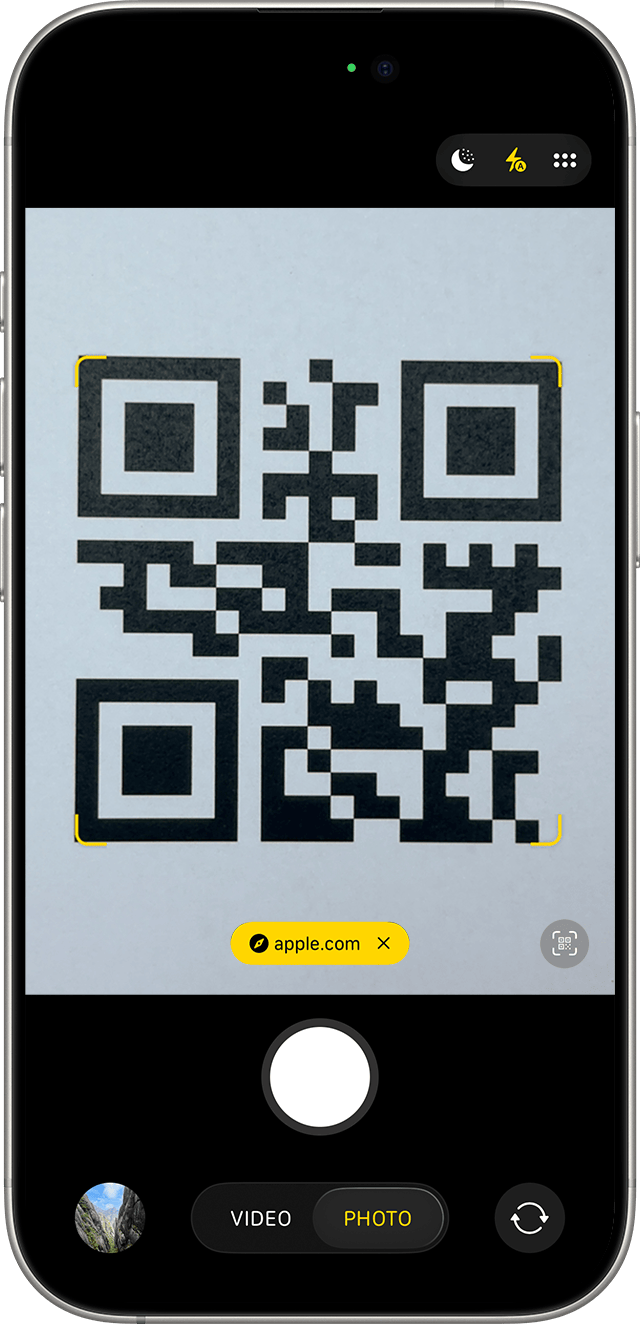 iPhone Camera recognizes the QR code and shows a tappable link banner (source: Apple Support HT208843).
Quick answer
Open Camera, point it at the QR code, then tap the banner that appears at the top of the screen.
Method 1: scan with the Camera app
- Open Camera on your iPhone.
- Point the camera at the QR code and keep it steady.
- Wait for the link banner to appear.
- Tap the banner to open the destination.
This works in Photo mode on supported iOS versions.
Method 2: use the Code Scanner shortcut
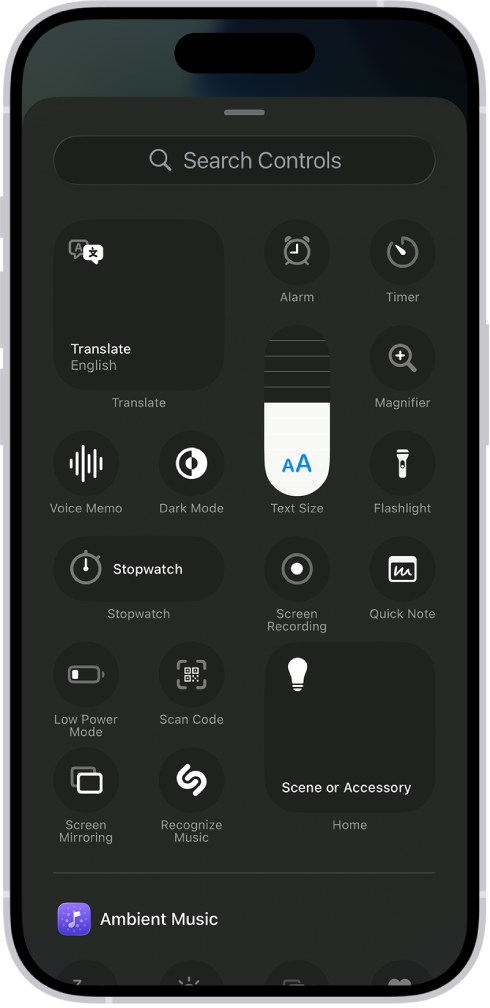 In Control Center’s controls gallery, choose Scan Code to add the QR scanner button (source: Apple iPhone User Guide).
If you want a dedicated scanner, add Code Scanner to Control Center:
- Open Settings.
- Tap Control Center.
- Add Code Scanner.
- Open Control Center and tap Code Scanner to scan.
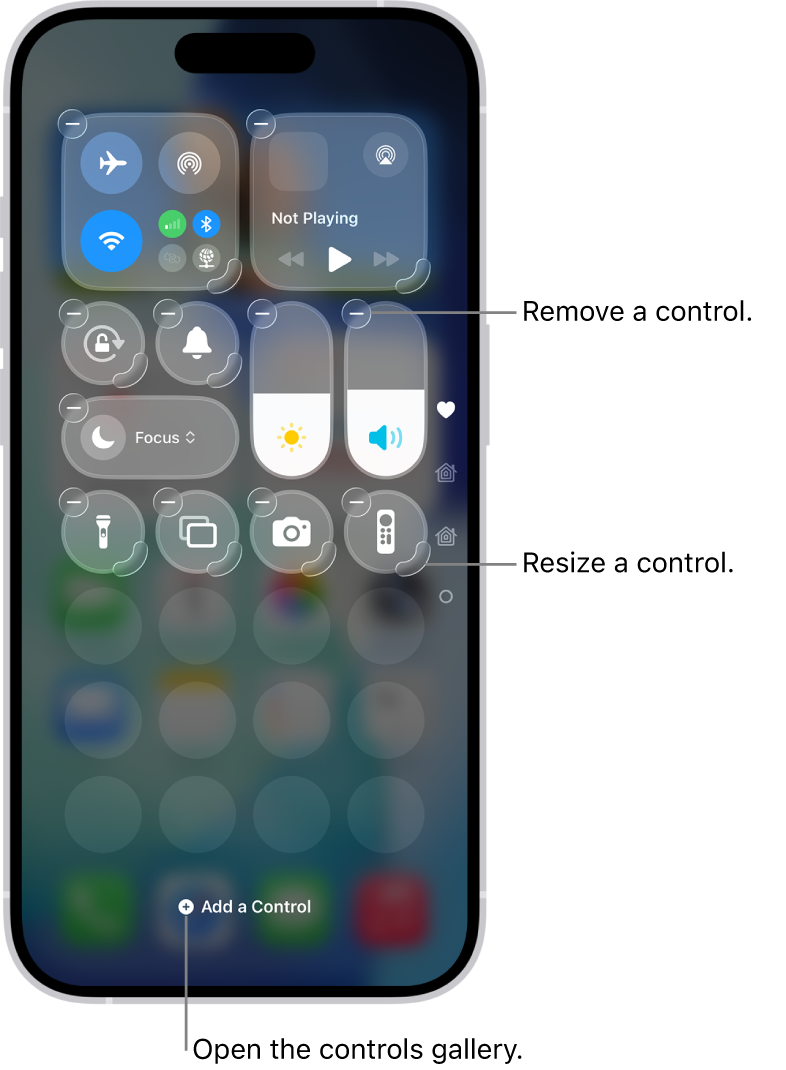 Control Center edit mode where you can add, remove, and rearrange controls, including Scan Code (source: Apple iPhone User Guide).
If the QR code is not working
- Increase lighting and clean the camera lens.
- Move closer, then farther, until the full code is in frame.
- Make sure the code is not blurry or damaged.
- Restart Camera and try again.
- If the QR opens a deep link, test again after installing or updating the target app.